
Connecting Search Console to an AI assistant is the easy part. These are the questions, prompts and checks that turn it into an actual analysis.
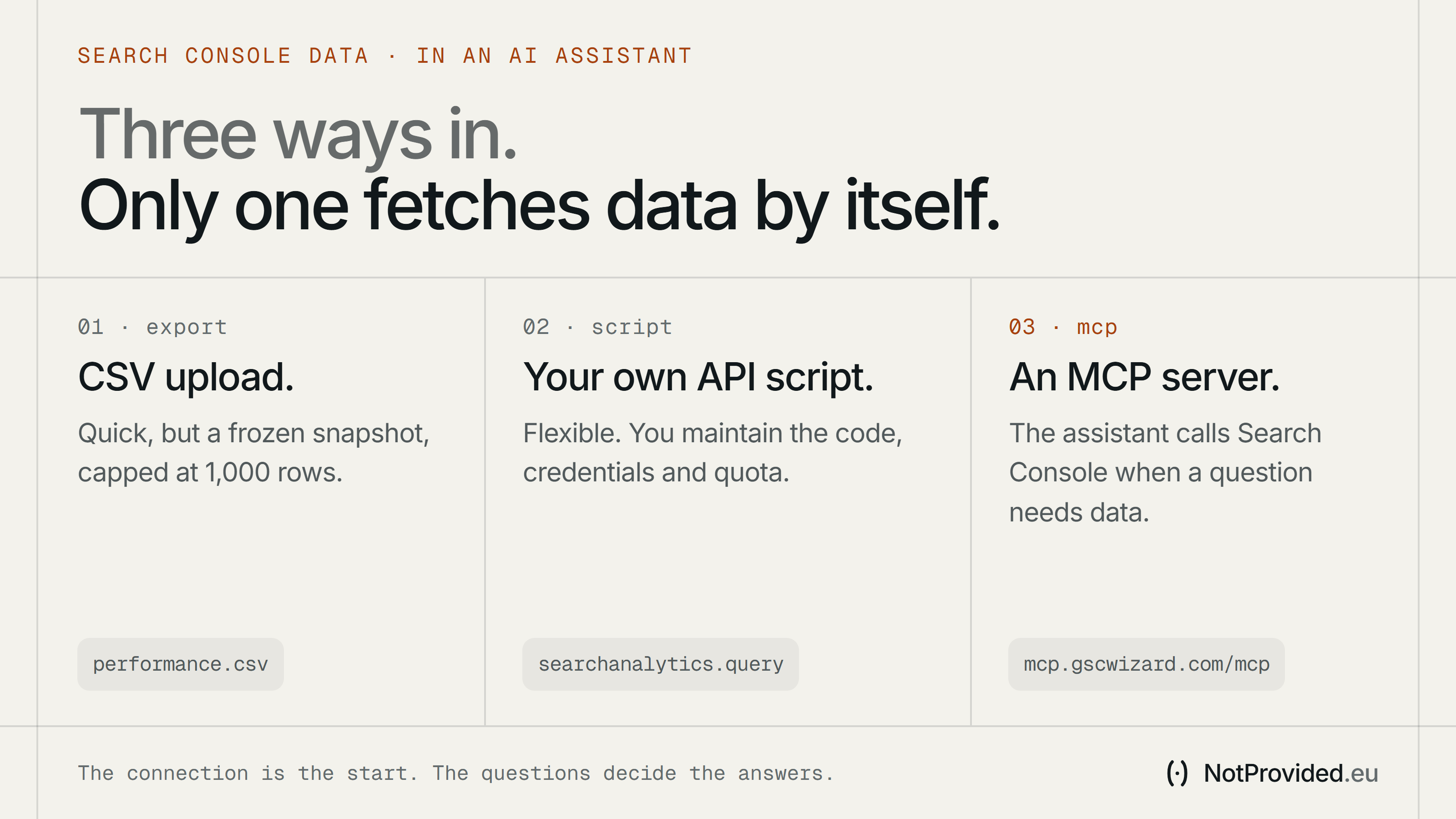
There are roughly three ways to give an AI assistant your Google Search Console data. You can export a CSV from the Search Console interface and upload it, which is quick but gives the assistant a frozen snapshot capped at 1,000 rows. You can write a script against the Search Console API and paste or pipe the results in, which is flexible but means maintaining code, credentials and quota yourself. Or you can connect an MCP server, which lets the assistant call Search Console by itself, whenever a question needs data.
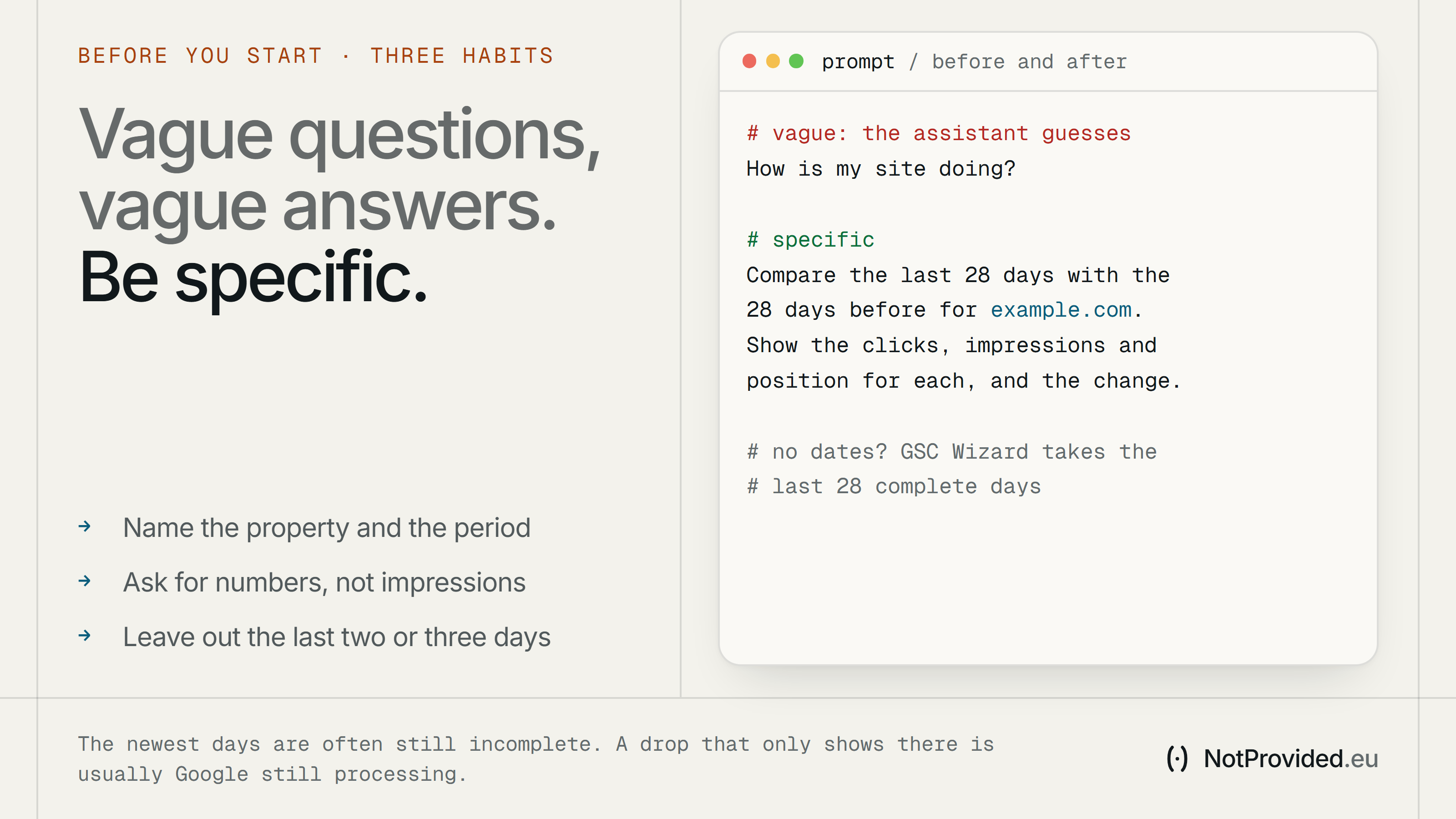
Most articles about this stop once the connection works. In my experience that is where the useful part starts, because a connected assistant that gets vague questions gives vague answers. This article is about what comes after: eight analysis workflows I run on real sites, with the prompts I use, what the assistant does behind each one, and how to check that the answer is right.
I use GSC Wizard for this, which is the Search Console MCP I build, so the tool names below are its tools. The workflows themselves work with any Search Console MCP that can answer the same questions, although with a thin server the assistant will have to do more of the arithmetic itself, which is exactly where answers start to drift.
Before you start: three habits that make every answer better
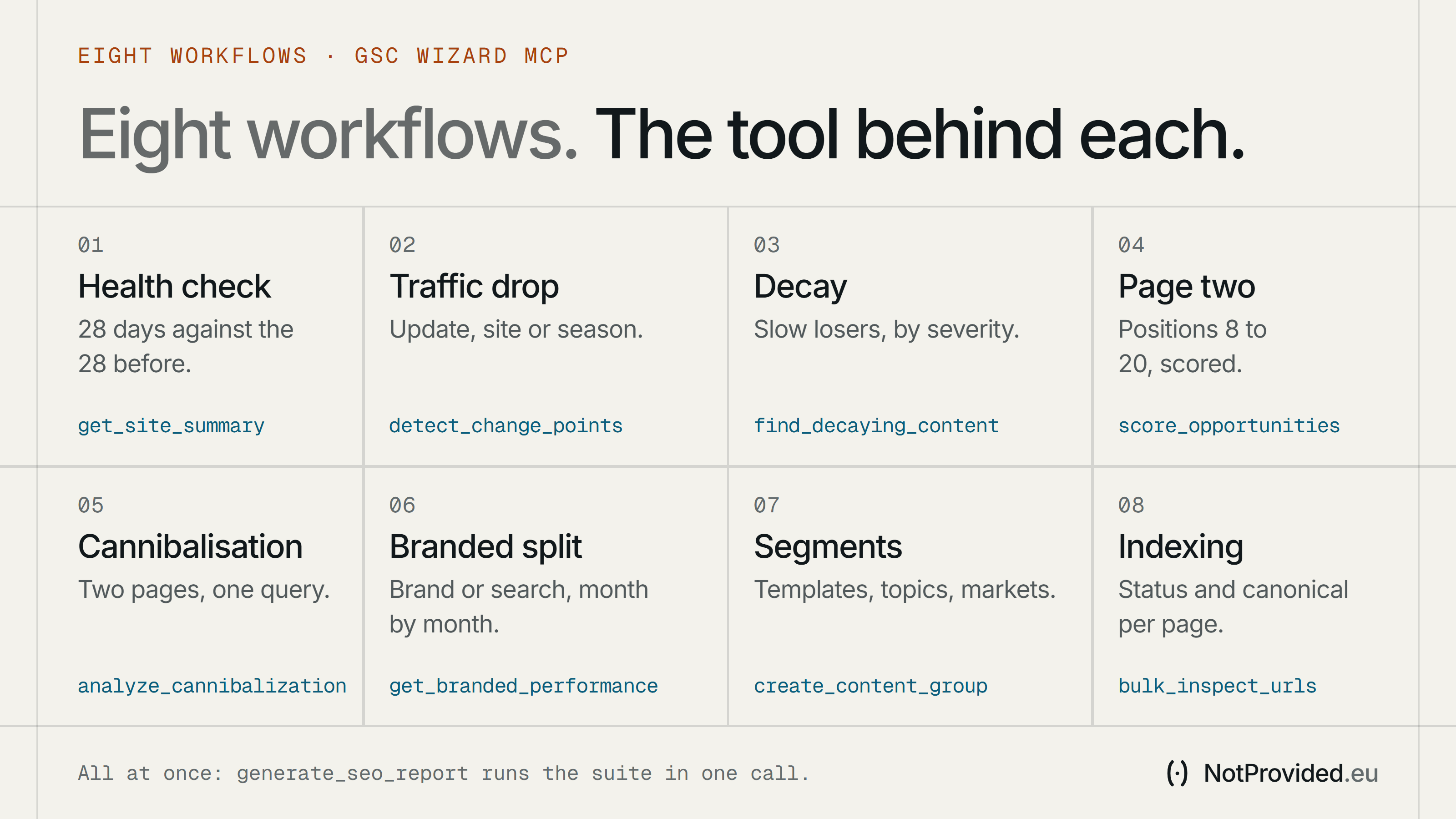
Name the property and the period. "How is my site doing?" makes the assistant guess. "Compare the last 28 days with the 28 days before for example.com" gives it everything it needs. If you leave the dates out, GSC Wizard defaults to the last 28 complete days, but being explicit makes the answer easier to check.
Ask for numbers, not impressions. A good prompt ends with something like "show the clicks, impressions and position for each, and the change". It forces the assistant to ground its story in the data instead of in general SEO advice.
Stay away from the last two or three days. Search Console data lags, and the most recent days are often still incomplete. A drop that only shows up in the last few days is usually Google still processing. GSC Wizard flags a date range that reaches into unfinished days, and it is worth asking the assistant whether that flag is there before you act on a trend.
Workflow 1: the 28-day health check
This is the first thing I run on any site, and it takes one prompt:
"Give me a health check of example.com: the last 28 days compared with the 28 days before. What changed most in clicks, impressions, CTR and position, and which pages and queries drove the change?"
Behind it the assistant calls get_site_summary for the totals and the comparison, and usually follows up with the top pages and queries to explain the movement. The answer you want has three parts: the headline numbers with their change, the handful of pages or queries responsible for most of that change, and a plain-language reading of whether it is a ranking, demand or CTR story.
How to check it: compare the headline clicks with the Search Console interface for the same dates. They should match, because the totals come from Search Console's own property totals rather than from adding up rows.
Workflow 2: diagnosing a traffic drop
When traffic falls, the question is always the same: was it an algorithm update, something on the site, or normal seasonality?
"Clicks on example.com dropped in the second week of October. Find when it started, check it against Google's algorithm updates, and tell me which pages and queries lost the most, and whether they lost rankings or just clicks."
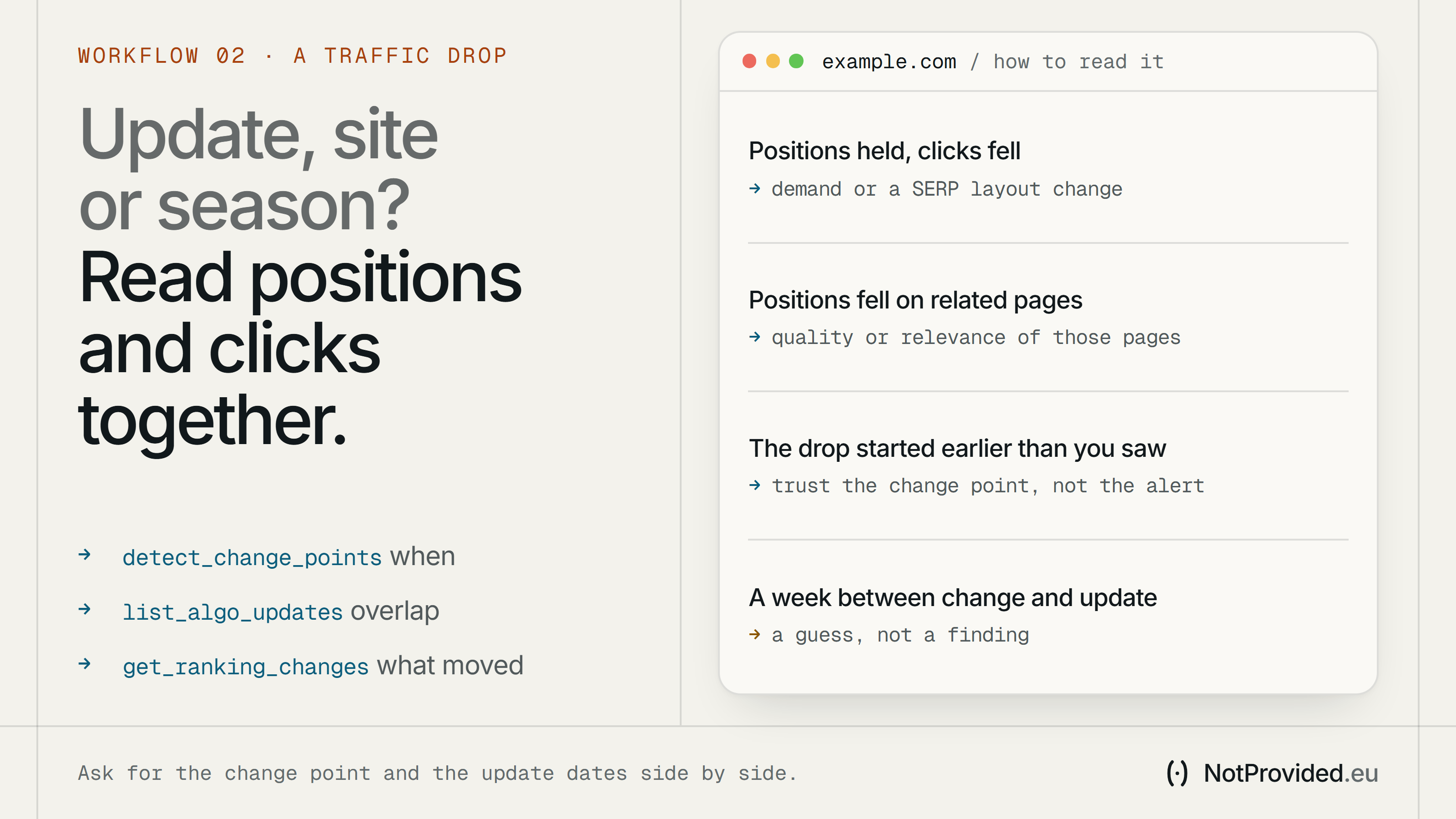
This one chains several tools. detect_anomalies and detect_change_points find when the drop really started, which is often a few days before anyone noticed. list_algo_updates checks whether a confirmed Google update overlaps. get_ranking_changes shows which queries moved and by how much. The reading that matters most comes at the end: if positions held but clicks fell, you are looking at demand or a SERP layout change; if positions fell on a group of related pages, you are looking at a quality or relevance problem on those pages.
How to check it: ask the assistant to show the date of the change point and the dates of any matching update side by side. An "algorithm update" explanation with a week's gap between the two is a guess, not a finding.
Workflow 3: finding decaying content
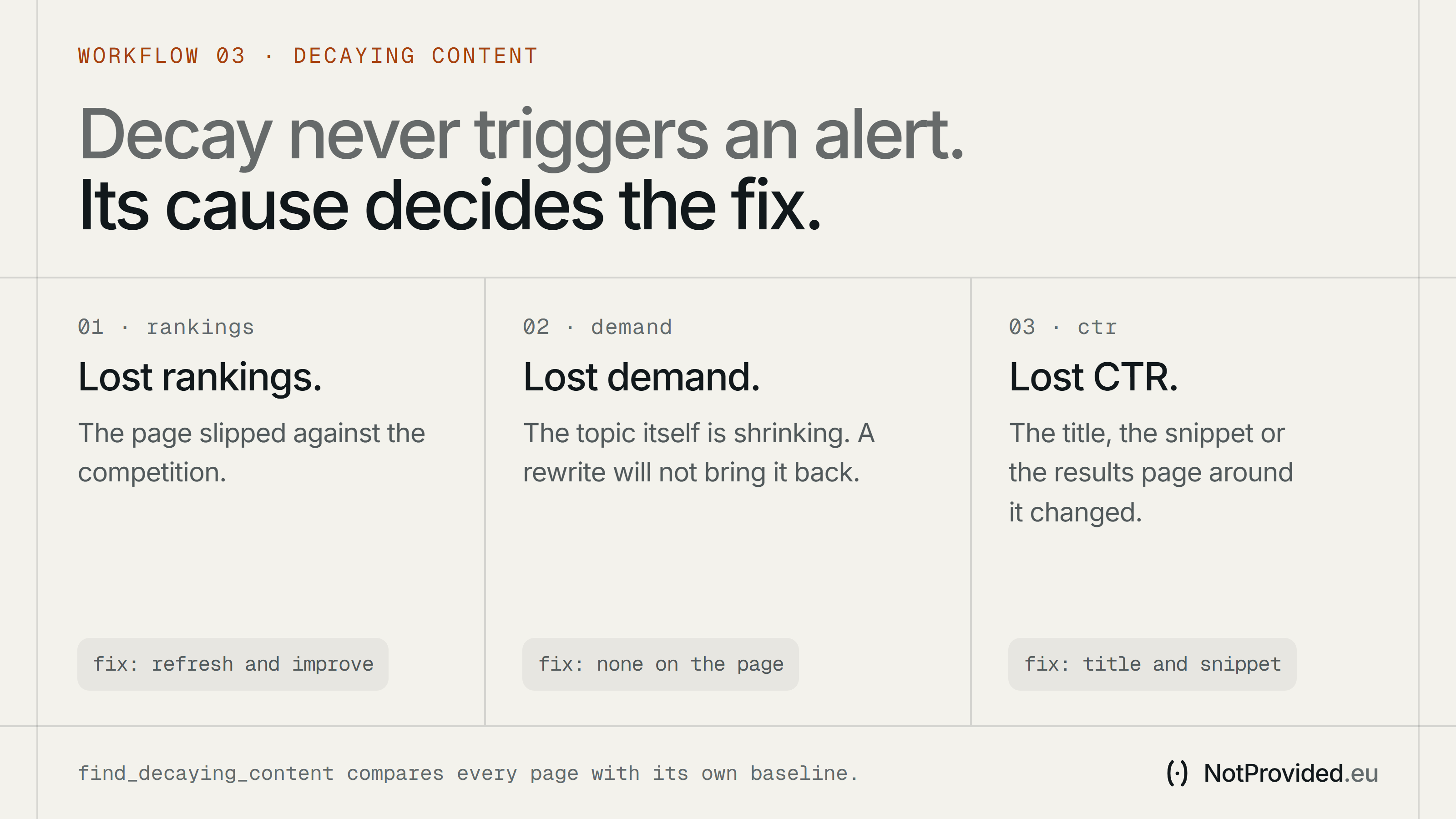
Content decay is slow, which is exactly why it gets missed. A page that loses 4% a month never triggers an alert, and a year later it has lost half its traffic.
"Which pages on example.com have been losing clicks for at least three months? Group them by severity and tell me for each one whether it lost rankings, lost demand or lost CTR."
find_decaying_content compares every page with its own baseline and returns the losers sorted into severe, moderate and mild, with the clicks lost and the likely pattern behind each. That pattern decides what you do: a ranking loss means refresh and improve the page, a demand loss means the topic itself is shrinking and a rewrite will not bring it back, and a CTR loss means the title, snippet or the SERP around it changed.
How to check it: pick the top page from the list and ask for its monthly clicks over the last twelve months with get_page_performance. The trend should be visible without squinting.
Workflow 4: striking-distance opportunities
The cheapest traffic on most sites sits on page two: queries where a page already ranks around positions 8 to 20 and needs a push rather than a new piece of content.
"Find the queries on example.com where we rank between positions 8 and 20 with real impressions. Score them by potential and tell me which page ranks for each and what you would change on it."
score_opportunities ranks those queries by how much traffic a better position would be worth, and analyze_ctr_curve adds the site's own click-through curve per position, so the estimate is based on how your results actually perform rather than on an industry average. For the top few, I ask the assistant to run audit_onpage_seo on the ranking page, which checks the title, headings, meta description and other on-page signals against the query.
How to check it: the expected gain is an estimate, so ask the assistant to say so and to show the impressions it is based on. An opportunity with 40 impressions a month is not an opportunity, whatever its score.
Workflow 5: cannibalisation
When two pages on the same site compete for the same query, Google often alternates between them and neither ranks as well as one strong page would.
"Find queries on example.com where more than one page ranks and the clicks are split. For the worst cases, tell me which page should win and what to do with the other."
analyze_cannibalization finds those queries and shows how clicks and impressions are split between the competing URLs over time. The fix depends on intent: if both pages answer the same question, merge them and redirect; if they answer different questions, make the difference clearer in titles, headings and internal links.
How to check it: look at the dates. Two pages ranking for the same query in different months is often just Google trying alternatives, not a problem. Real cannibalisation shows both pages taking impressions in the same weeks.
Workflow 6: branded versus non-branded
Total clicks hide the most important split in SEO: people who already know your brand and people who found you through search.
"Split example.com's clicks into branded and non-branded for the last six months, month by month. Is non-branded growing or are we living off the brand?"
get_branded_performance does that split using the brand terms you set for the property in GSC Wizard, including spelling variants or a regular expression if your brand is written in several ways. A site whose growth is all branded is benefiting from marketing elsewhere; a site whose non-branded share is growing is winning in search itself.
How to check it: ask the assistant to list the brand terms it used. If a common misspelling is missing, branded traffic leaks into the non-branded side and makes SEO look better than it is.
Workflow 7: performance by template, topic or market
On any site larger than a blog, nobody thinks in URLs. They think in product pages versus category pages, in topics, or in countries.
"Create a content group for example.com with all URLs containing /blog/ and one for /products/. Then compare their clicks, CTR and position over the last three months."
The assistant can create the groups itself with create_content_group, as long as you allowed changes when you connected it (a read-only connection can still read groups you made in the app), and then read them back with get_content_group_performance. Topic clusters work the same way for queries (create_topic_cluster, get_topic_cluster_performance). Once a group exists it stays, so every later question can be asked per template: "which product pages are decaying?", "is the blog cannibalising the category pages?".
How to check it: ask how many URLs each group matched. A rule that matches 3 pages when you expected 300 is the most common reason a segment analysis looks strange.
Workflow 8: indexing problems
Traffic can only come from pages Google has indexed, and Search Console's indexing reports are hard to work through page by page.
"Inspect the 20 pages on example.com that lost the most clicks this quarter and tell me which ones have an indexing or canonical problem."
bulk_inspect_urls runs Google's URL Inspection on a list of pages within the daily inspection quota, and the answer comes back per page with its index status, the canonical Google chose and the last crawl. For pages you care about long term, the index tracker (get_indexing_tracker) follows their status over time, so you see the day a page drops out instead of a month later.
How to check it: whenever the canonical Google chose differs from the one you declared, ask the assistant to show both URLs. It is the single most common hidden cause of a "decaying" page.
When you want all of it at once
Every workflow above can also be part of one request:
"Run a full SEO audit of example.com and give me the five issues with the biggest traffic impact, with the evidence for each."
generate_seo_report runs the whole suite in one call and hands the assistant a structured summary to explain. I use it as the starting point for a new site, and then go deeper with the individual workflows on whatever it surfaces.
How to know whether to trust the answer
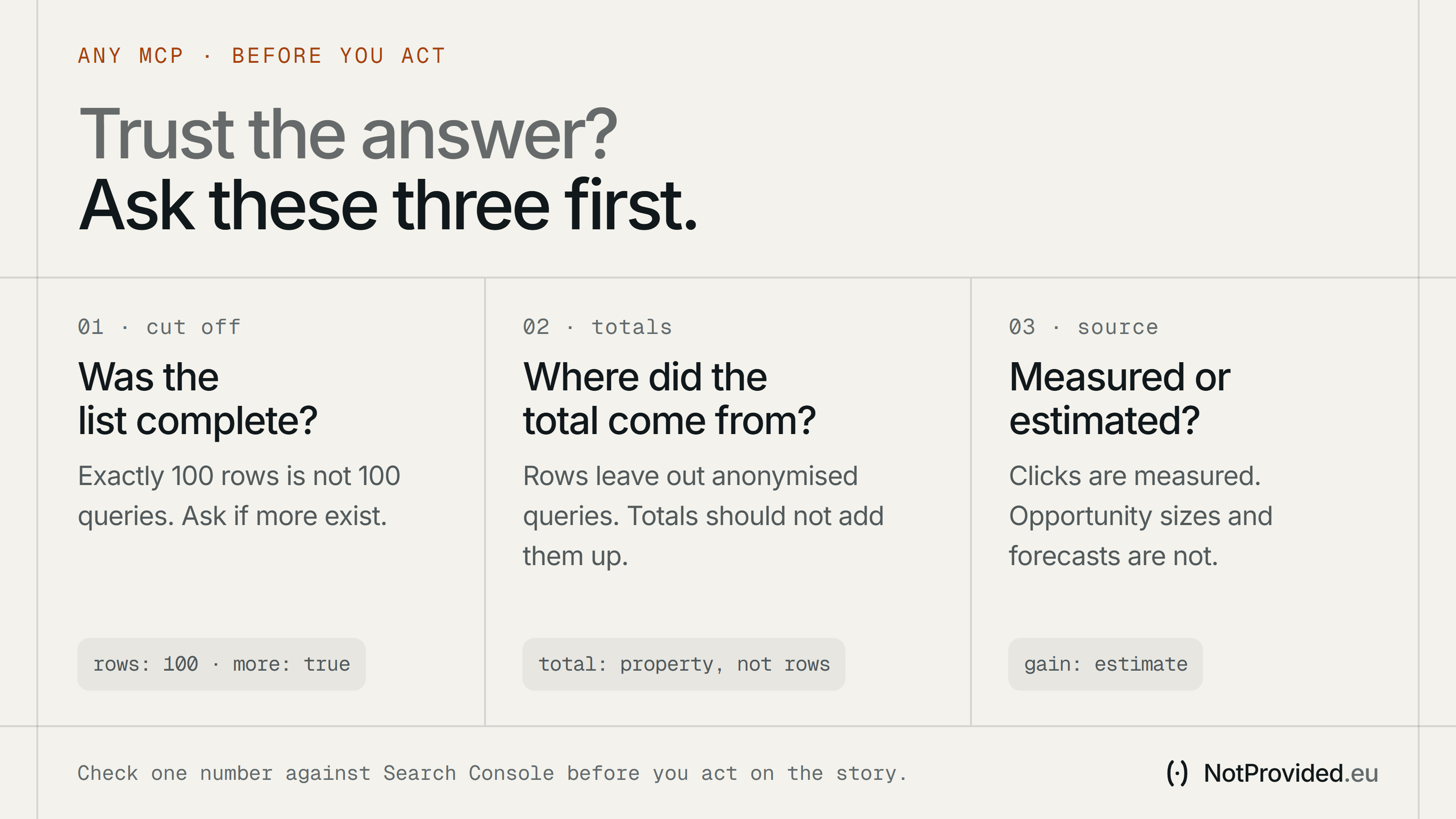
Whatever MCP you use, three questions tell you whether an answer is built on the full data:
- Was the result cut off? If the assistant received exactly 100 rows, it may assume your site has 100 queries. Every GSC Wizard tool that returns rows says whether more exist, so you can ask "was that the full list?" and get a real answer.
- Where did the total come from? Totals should come from Search Console's property totals, not from adding up rows, because Google leaves anonymised queries out of the rows. If the assistant's total is well below the Search Console interface, it added up a partial list.
- Is it measured or estimated? Clicks and impressions are measured. Opportunity sizes and forecasts are estimates. A good answer keeps the two apart, and it is worth asking the assistant to label them when it does not.
Setting it up
If you have not connected Search Console yet, GSC Wizard takes about two minutes: sign in with Google at tool.gscwizard.com, then add the GSC Wizard app in ChatGPT or add https://mcp.gscwizard.com/mcp as a custom connector in Claude. The first 7 days are free without a credit card, and plans start at €17 ($19) a month after that. The setup guide covers Cursor, Claude Code, Codex and other clients too.
Whichever server you use, the habit that matters most is the same: ask specific questions, ask for numbers, and check one number against Search Console before you act on the story around it.